This Napkin AI tutorial shows you how to turn text into a visual, edit its design, and export it for an article or presentation. The example follows a hiring-interview process, so you can see how the same ideas work as both written content and a diagram.
You can follow along with your own writing or use the short example below. The screenshots walk through account setup, visual generation, layout choices, and editing before you export the result.
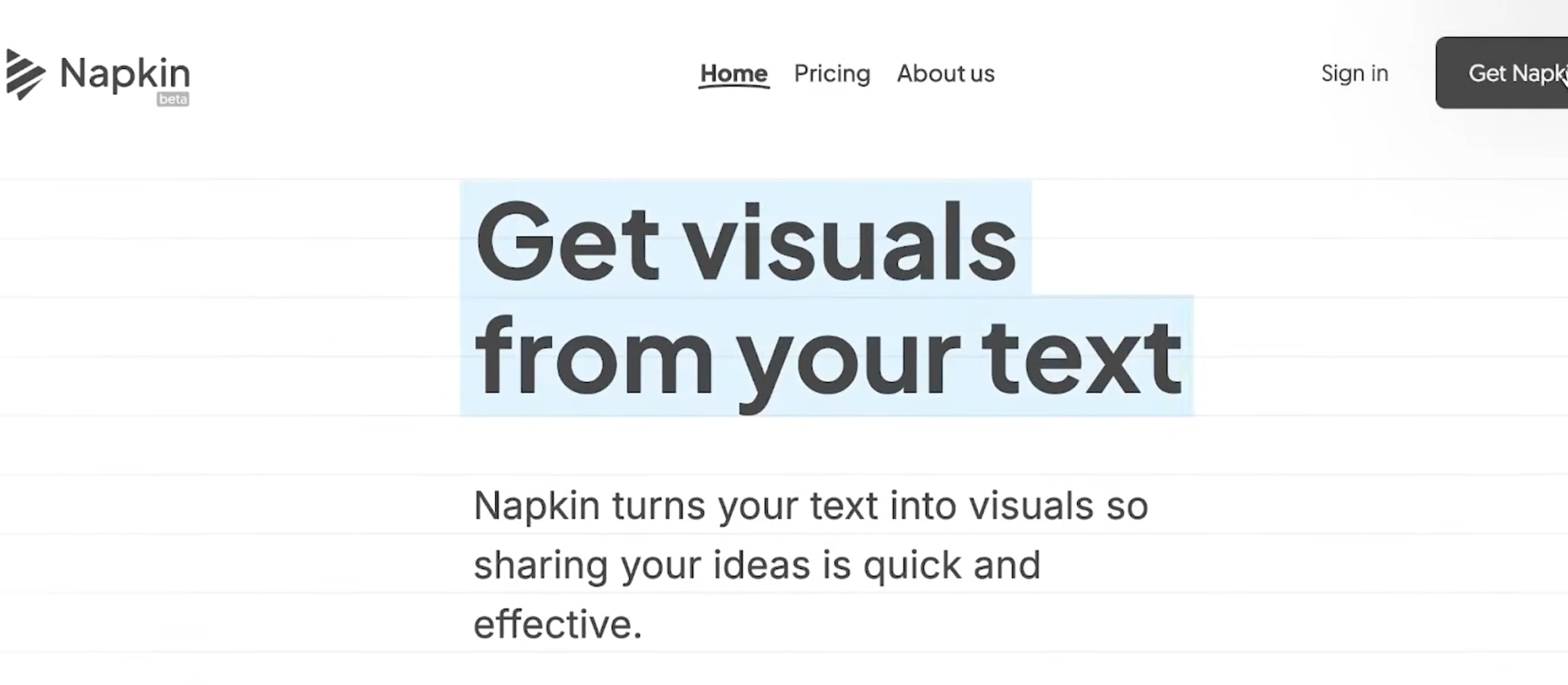
What is Napkin AI?
Napkin AI helps you present information as diagrams, process graphics, timelines, and other visuals. You can start with your own writing or use its AI text-generation option to create a draft.
It is useful when a reader needs to understand a sequence, compare ideas, or see how concepts connect. For an article, start with a short section that has a clear structure. A visual should help explain the text around it.
This guide focuses on Napkin Visuals. Napkin also offers Slides (Beta) for presentations. Use a computer to follow the individual-visual workflow described here.
Napkin AI tutorial: create your first visual
1. Create an account
Visit Napkin and select Get Napkin Free. Choose Google or email sign-in, complete any verification requested, and answer the onboarding questions.
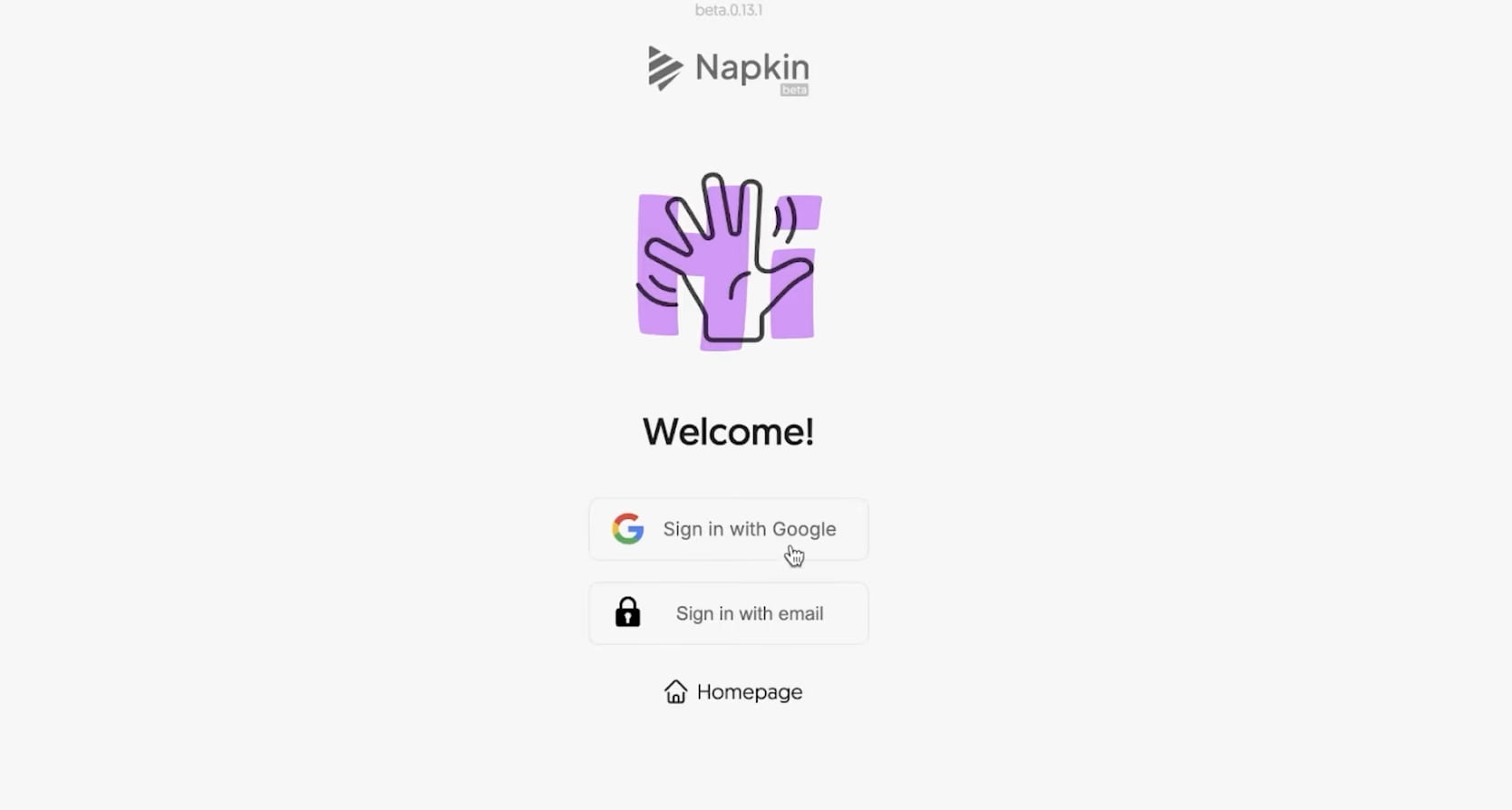
You can begin on the free plan. Keep the weekly credit allowance in mind while trying different generations; editing an existing visual is separate from generating a new one.
2. Add your text or describe an idea
During first-time onboarding, select Create My First Napkin. The tutorial offers two starting options: paste text you already have or generate a text draft with AI.
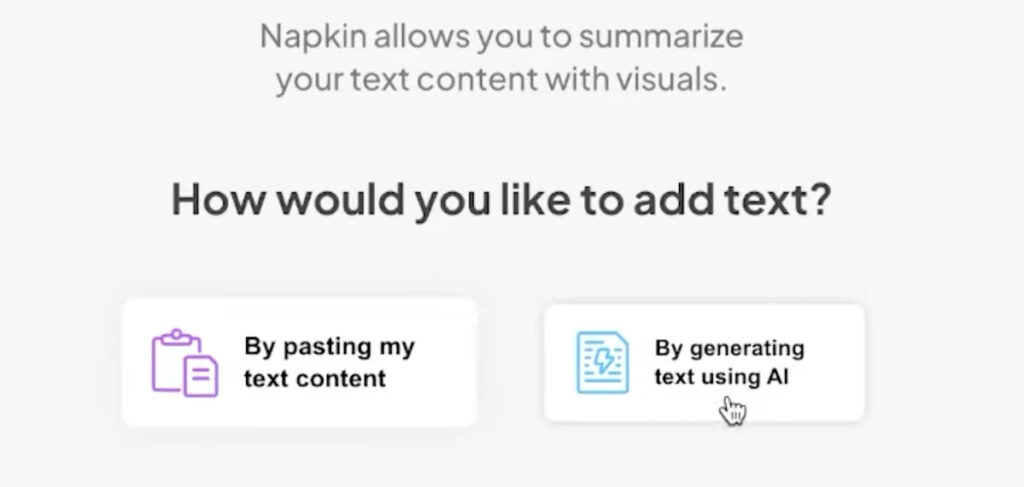
For this example, use “Best practices for a hiring interview” as your topic. Generate a draft, or paste a short explanation covering preparation, conducting the interview, and evaluating candidates afterward. You can use this sample text:
Prepare: Review the role and write questions about the skills needed.
Conduct: Ask each candidate the same core questions and take notes on their examples.
Evaluate: Compare the evidence against the role’s criteria and agree on the next step.
Read and edit the wording before you visualize it. Remove repetition, correct mistakes, and keep the ideas you want the diagram to communicate. A few clear points are easier to organize than a long passage containing several unrelated topics.
If you are starting with a full blog post, our Koala AI Writer tutorial walks through preparing the written article. Then select a focused passage to turn into a Napkin visual. For ready-made writing prompts, see my prompt packs below.
3. Generate a visual from the text
Hover over a paragraph to reveal the blue Generate Visuals button on its left. To visualize a particular section, select that text first, then click the button.
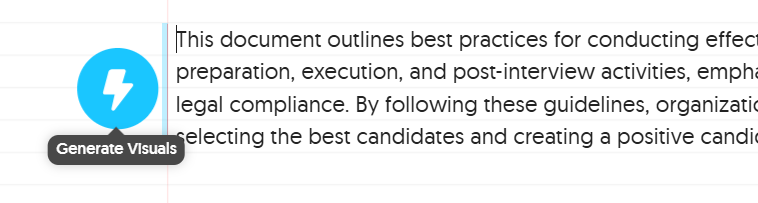
Browse the suggestions and select a visual to add it to your document. Check that the result includes the points you selected and that its labels describe them correctly.
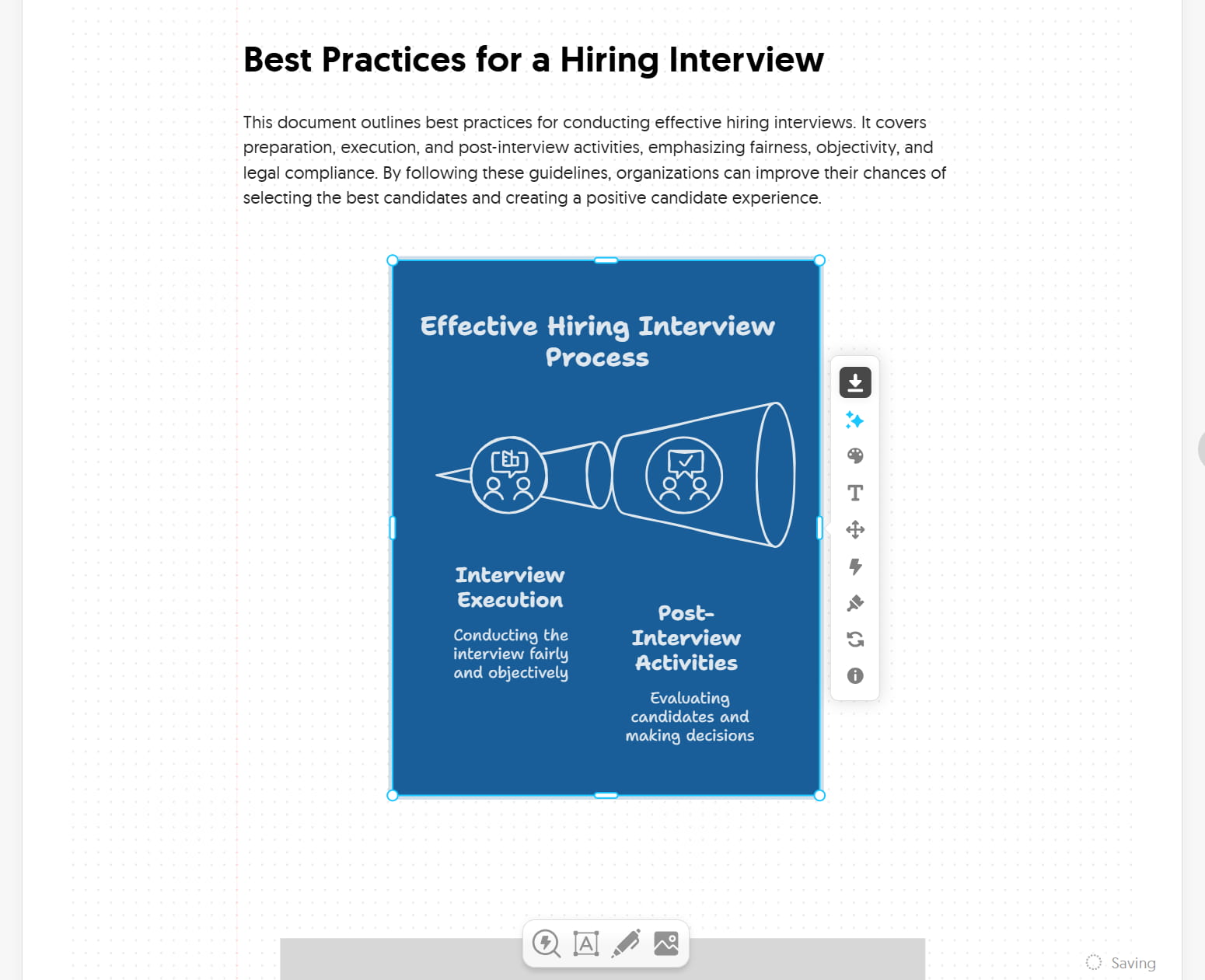
4. Choose a layout and level of detail
Try a different visual if the first suggestion does not communicate the idea clearly. For a sequence, a process diagram or timeline may work well; a comparison layout is better for contrasting options.
In the generation preview, choose Customize to request a visual type, orientation, and level of detail. Select portrait, landscape, or square as appropriate, choose a summary or detailed result, then click Apply. See Napkin’s Custom Generation guide for the current controls.
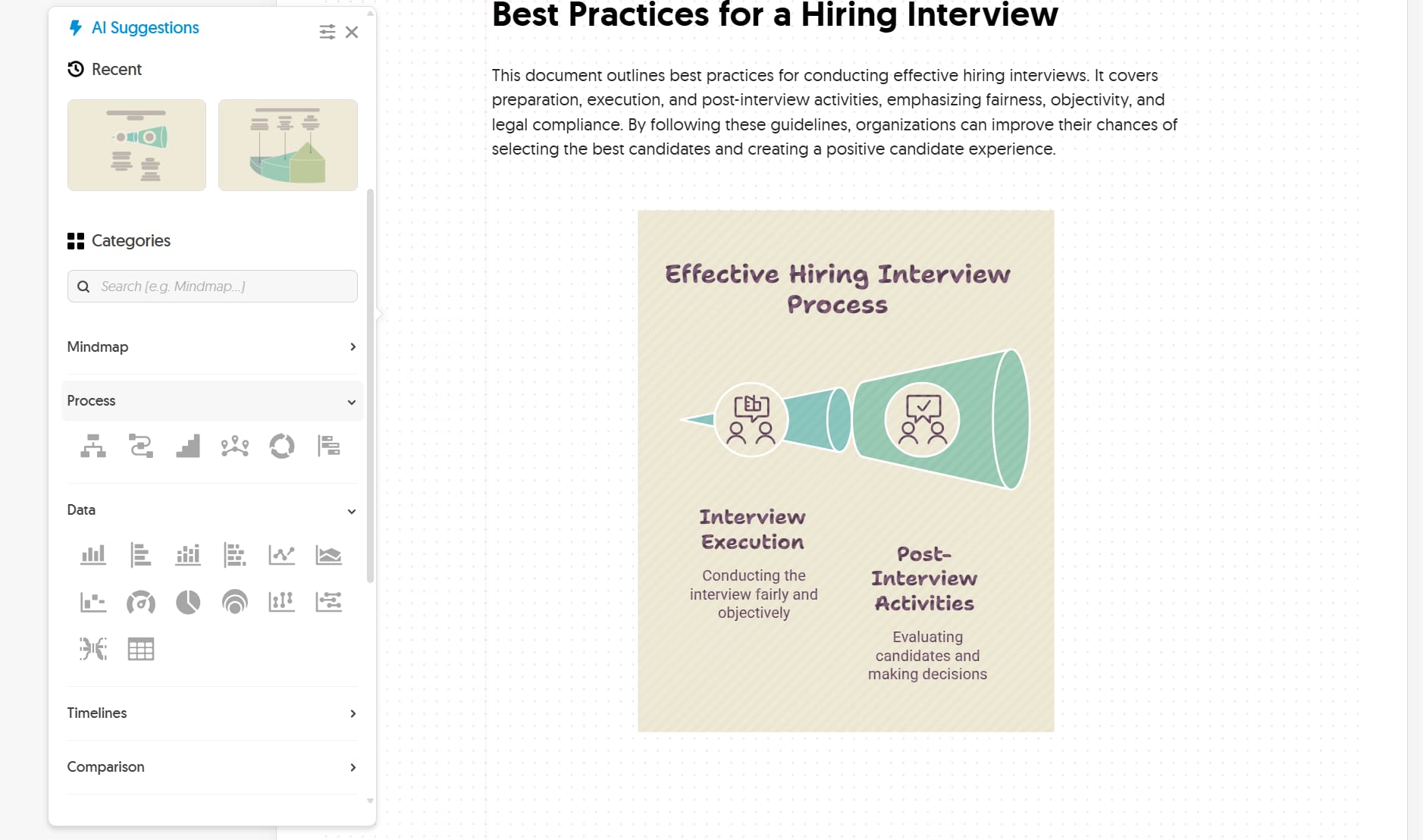
A layout request guides the suggestions; review the result and adjust it as needed. For a blog post, favor a design whose labels remain readable within your article’s content width.
5. Edit text, icons, colors, and fonts
Click an element to edit it. You can change the wording, adjust its formatting, and choose colors that suit the rest of your article. Select an icon to explore replacements relevant to the idea it represents.
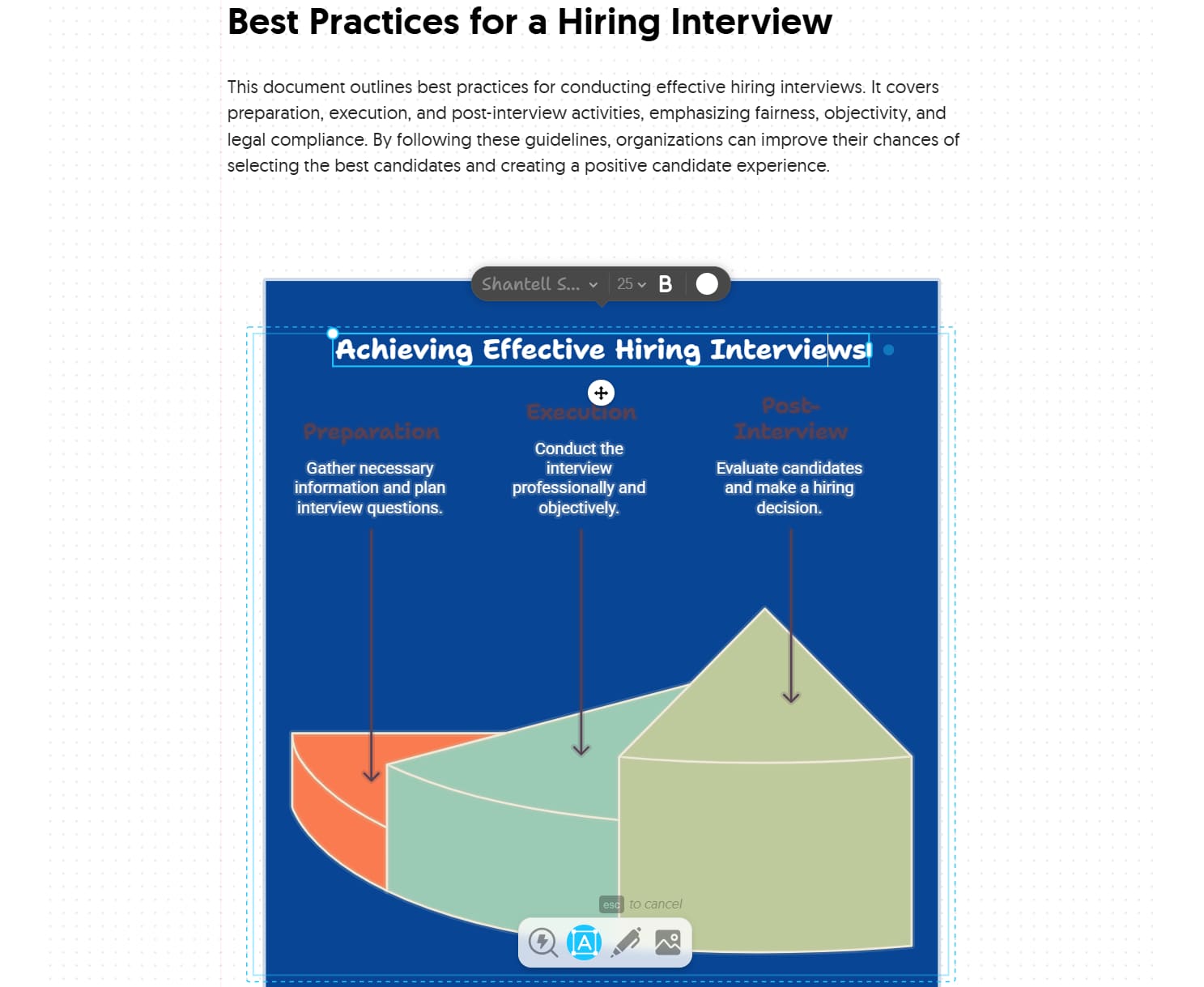
Use the font control to choose an available typeface. Keep headings consistent, shorten long labels, and remove supporting text when it makes the diagram too crowded.
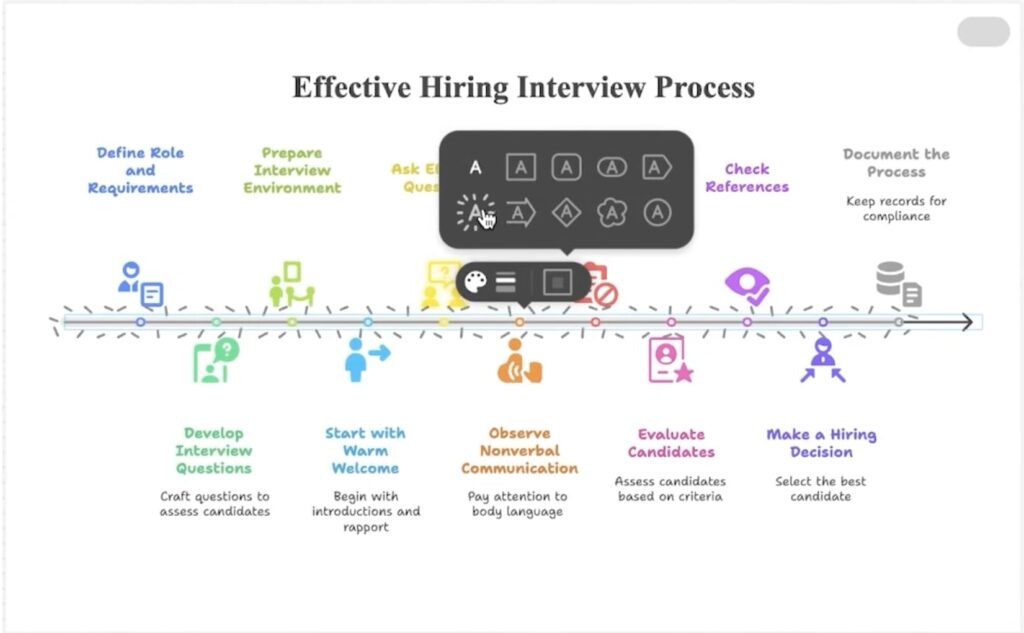
The size menu includes options such as XS, S, M, L, and XL. XL means extra large. It can make a heading wrap awkwardly if the text box is narrow, as the example below shows.
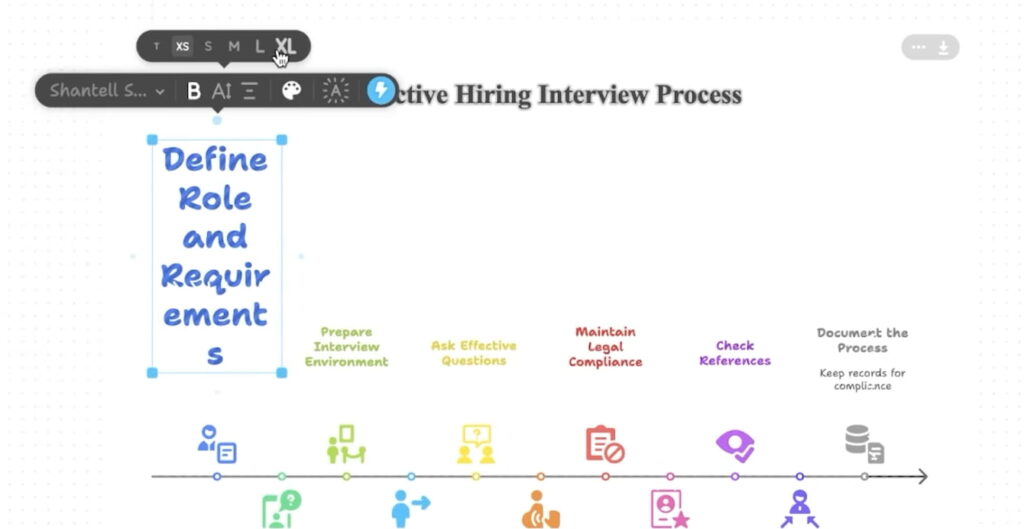
Before exporting, check the whole design at the size readers will see. Enlarge text boxes or reduce the font size to fix unwanted line breaks. Choose text and background colors with enough contrast.
How to export Napkin AI visuals
Select the visual’s frame and click its export/download button. This opens the Export Visual panel.
- Choose a format. PNG is convenient for adding the visual to an article. Other formats include PDF, SVG, and PowerPoint; availability depends on your plan.
- Check the background. Turn it on or off to suit where you will place the image. Transparent images need readable text against the destination page’s background.
- Check resolution and branding. Choose an available resolution and review the Napkin Logo setting. Some formats and branding controls require a paid plan.
- Click Export. Save the file, open it, and check the labels, edges, and colors before adding it to your article.
For WordPress, upload the exported image itself, give it a descriptive filename, and add alt text explaining the information it contains. Keep the surrounding paragraph so readers can understand the point without relying entirely on the image.
Planning to share your finished article with an email list? Read our Sender.net review and email marketing walkthrough for the next stage of that workflow.
For the current export steps, consult Napkin’s official getting-started guide.
Create another Napkin or start a presentation
After onboarding, return to your library and select New Napkin. Choose Visuals to work on a diagram or graphic, or Slides (Beta) to create a presentation.
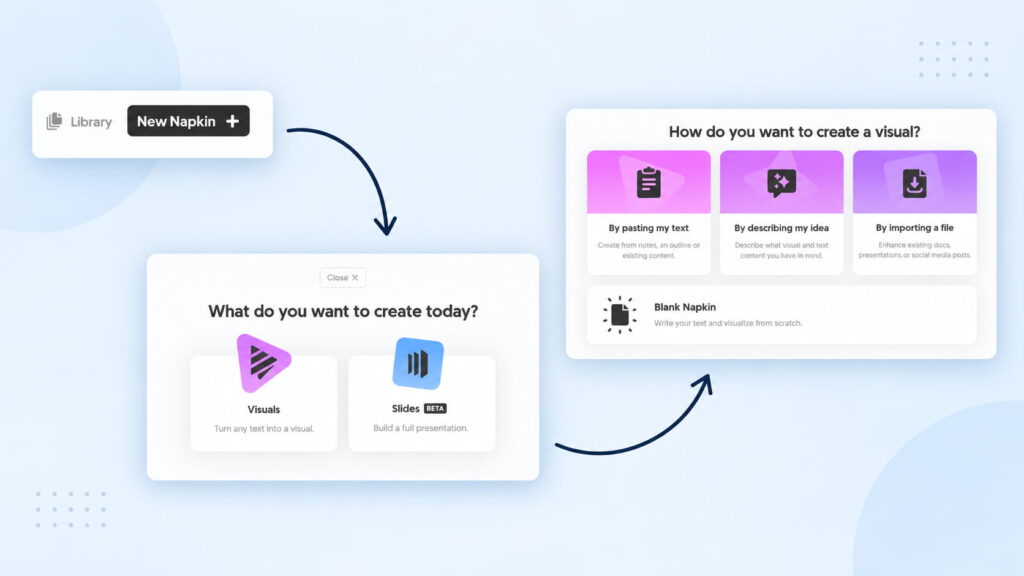
For Visuals, you can paste text, describe an idea, import a file, or choose Blank Napkin and begin writing. Keeping separate topics in separate Napkins makes them easier to find and revise later.
If you are building a wider social-content plan, our guide to starting a faceless motivation page covers content libraries, batching, and posting. A diagram can help you map the process before you create the individual posts.
Napkin AI pricing and free-plan limits
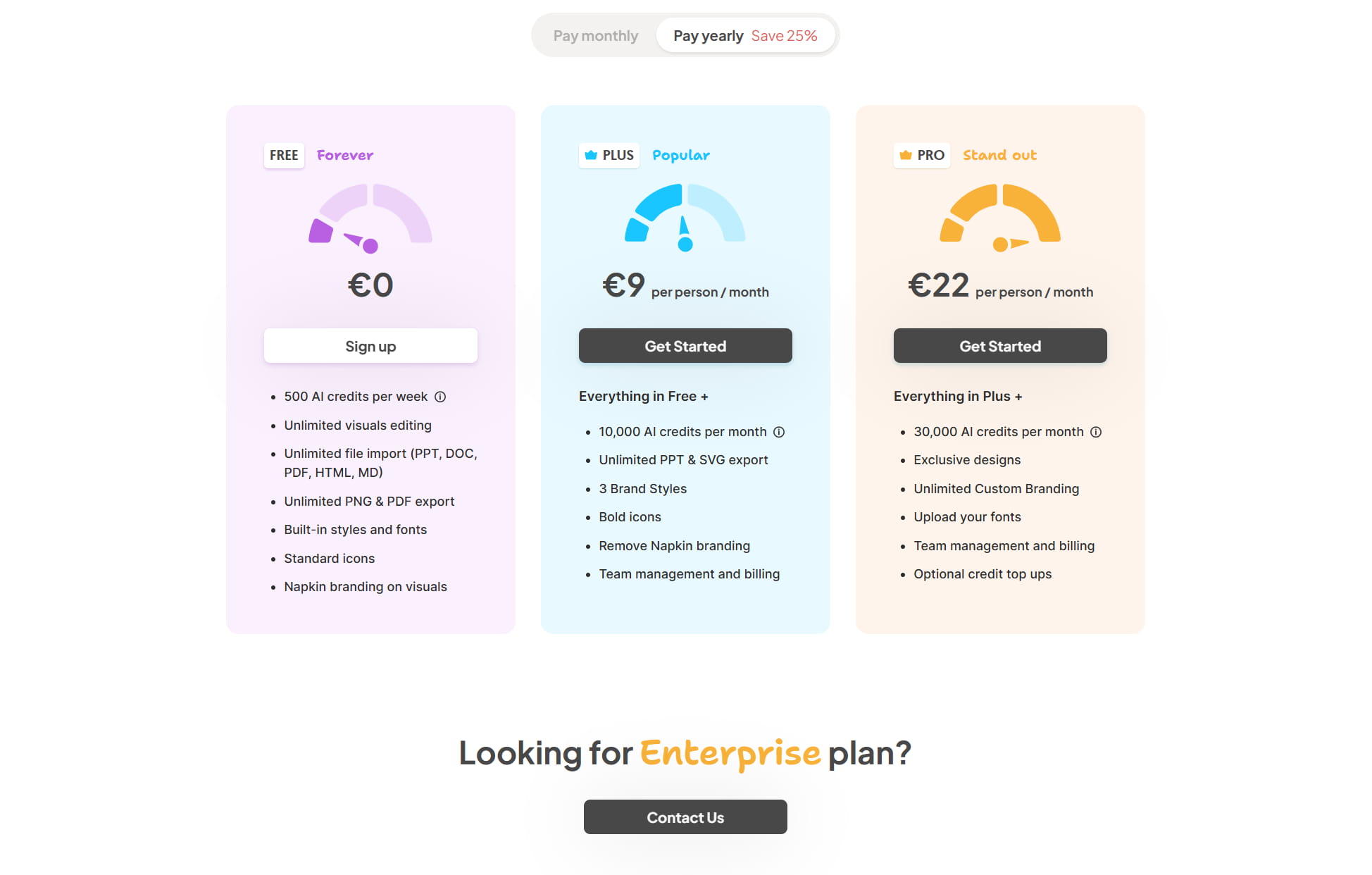
The plans below were checked against Napkin’s pricing page on October 15, 2026. The screenshot shows yearly billing selected. The table shows EUR prices with monthly billing selected; check the pricing page for your currency, taxes, and current billing options.
| Plan / monthly price | Included AI credits | Main difference |
|---|---|---|
| Free — €0 | 500 per week | PNG and PDF exports, built-in styles, and Napkin branding. |
| Plus — €12 per person | 10,000 per month | Remove Napkin branding, use three Brand Styles, and access unlimited PPT and SVG exports. |
| Pro — €30 per person | 30,000 per month | More branding options, uploaded fonts, and optional credit top-ups. |
Napkin advertises a 25% saving with annual billing. Its credits measure generation usage at roughly one credit per word selected, so a 100-word passage uses about 100 credits. Editing an existing visual is unlimited; generating more visuals draws on your allowance.
Start with the free plan to see whether the diagrams suit your articles. Consider a paid plan when credit limits, branding, or export requirements become a practical constraint.
My Napkin AI review: what I like and what I would improve
What I like most is the idea of adding visuals like these to my articles. A diagram gives me another way to present a process or explain information that would otherwise appear only as paragraphs.
The improvement I would welcome is a simple way to show Napkin a visual of my own and have it adapt a new design to that reference. That would help me guide the look I want for my articles.
Napkin already offers style controls, Custom Generation, and Brand Studio options for colors and fonts. Those controls can help with consistency, while my preference is for a more direct reference-image workflow.
The editing examples also show why the final check matters: large text can wrap badly, and some color combinations are difficult to read. Treat a generated diagram as a starting point and refine it for the page where you will use it.
My verdict: Napkin is worth trying if you want diagrams and process visuals alongside your writing. Its usefulness depends on how clearly the chosen layout explains your content and how much editing it needs before publication.
My digital products for content creators
Napkin helps you visualize an idea. If you need a starting point for the writing, these resources from my own Gumroad shop include a free sample and the full prompt library. Use a prompt in ChatGPT or another compatible assistant, edit the response, then bring a short passage into Napkin.
4,000+ ChatGPT & AI Prompt Pack
A searchable Excel library of prompts across 194 categories, including writing, marketing, SEO, and social media. It comes with a how-to guide, quick-start prompts, and other reference guides. Choose this pack if you want a larger library to return to across different projects.
50 Free ChatGPT Prompts
A free six-page PDF with 50 copy-and-paste prompts from my 4,000+ prompt library. It covers writing, marketing, business, and content creation. Try a prompt in your AI assistant, edit the response, then choose a short passage to visualize in Napkin.
Start with the free sample, then explore the full library if you want more categories and prompts. Each product page lists its complete contents and current purchase options.
Frequently asked questions
Is Napkin AI free?
Yes. The free plan includes 500 AI credits per week and PNG and PDF exports. Napkin branding remains on free-plan visuals; unlimited PowerPoint and SVG exports are included in paid plans.
Can I use my existing article text?
Yes. Paste the relevant passage, review it, and generate a visual from that section. Use a focused excerpt so the diagram has a clear purpose.
Which format should I use for a WordPress article?
PNG is a straightforward starting point for a diagram with text. Check its appearance against your page background, keep the file appropriately sized, and add descriptive alt text when you upload it.
Does Napkin create presentations too?
Napkin offers Slides (Beta) as well as Visuals. This tutorial covers individual visuals; choose Slides when you want to build a full presentation.
Final thoughts
To follow this Napkin AI tutorial, start with one useful passage, generate a diagram, edit its labels and design, and export it for your article. Begin with a simple example and judge the result by how well it helps your readers understand the idea. Try Napkin AI with one paragraph from your next article, then check the exported image at the width it will appear on your site.