How to Use Koala AI Writer in 2026 (Step-by-Step Guide)
A visual guide to using Koala AI Writer for SEO articles, YouTube-to-blog content, and WordPress publishing.
Koala AI Writer is no longer a single tool. It is a small platform, and the writing app inside it now handles model selection, search result analysis, outline editing, internal linking, image generation, video embedding, and publishing, all from one screen.
That is useful, but it’s also a lot to take in on your first visit if you have only ever used a general AI writing tool.
This step-by-step guide walks through the setup screen from top to bottom, explains what each setting actually does, shows which model to pick and when, and covers the two workflows I use most: a standard keyword article, and turning an existing YouTube video into a blog post.
A note on timing: Koala’s models, pricing, and interface change often. Everything here reflects the platform as of 2026. If something looks different on your screen, trust your screen.
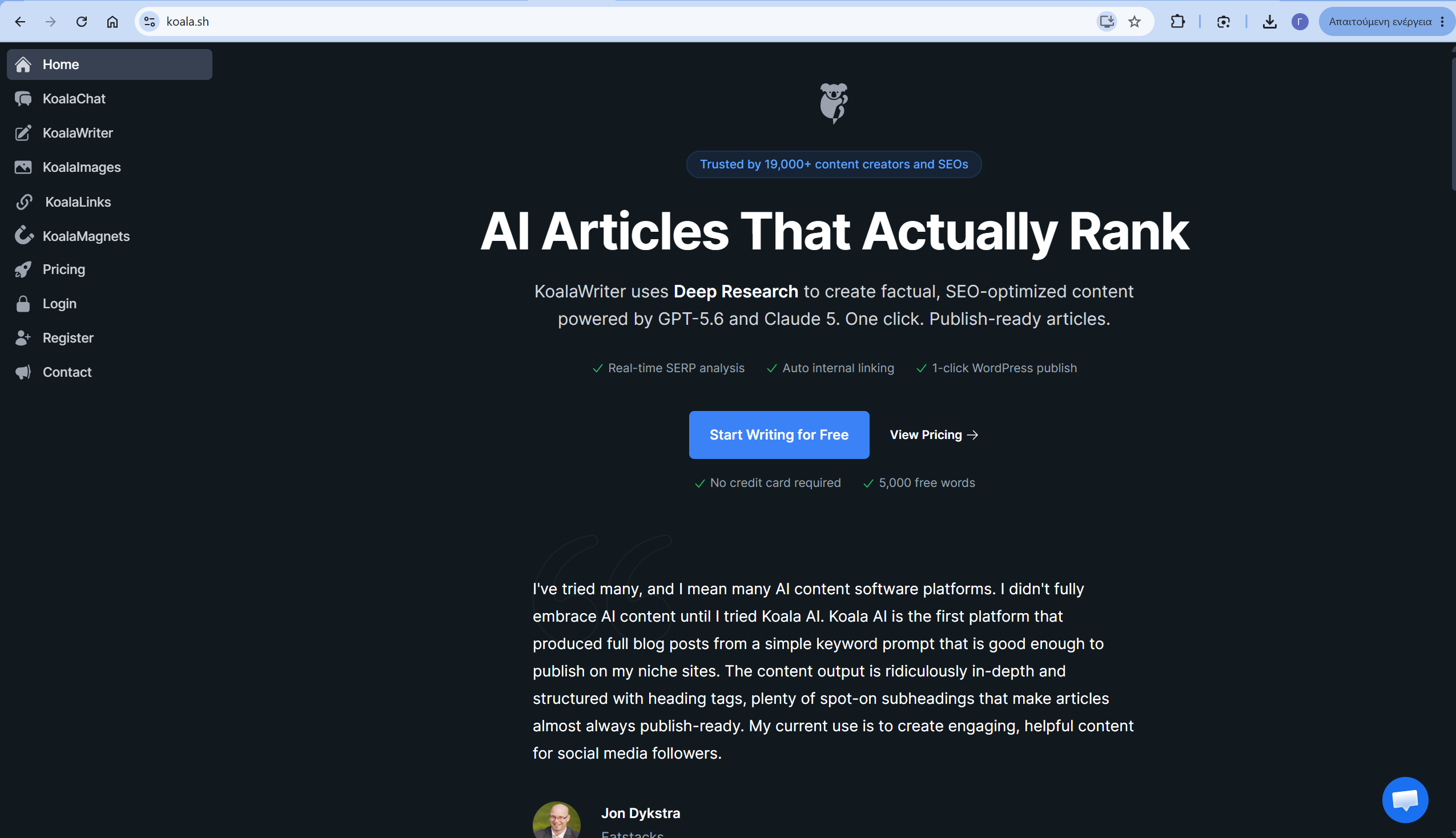
The KoalaWriter setup screen, full view.
What Is Koala AI Writer?
Most people arrive looking for KoalaWriter, which is the article generator. But the account also includes KoalaChat, a chat interface with live web access, and KoalaImages for AI image generation.
The distinction that matters is this one: A general AI writing tool like ChatGPT will happily write you a blog post, but you drive the whole process. Koala is built around content creation as a process. Where other writing tools give you a blank box, it starts from the search results. It reads the current search results for your keyword, works out what the ranking pages cover, proposes a structure you can edit, and then writes against that structure.
You can test it without paying. A free trial tier offers limited output, which is enough to see whether the writing style suits you before you commit to a plan.
Part 1: How to Use Koala AI Writer, Step by Step
Step 1: Create Your Koala AI Account
Sign up, then open KoalaWriter from the dashboard.
Paid plans start at $ 9/month. Start on the free trial if you want to see the output quality first.
Do not try to understand every setting on day one. The defaults are reasonable, and you will learn faster by generating three articles and comparing them than by reading tooltips.
The KoalaWriter setup screen with AI model, SEO, internal linking, media, article length, and tone settings.
If you want to follow along in your own account, you can try Koala here.
Disclosure: this guide contains affiliate links. If you buy Koala through one of them I earn a commission at no extra cost to you. I only recommend tools I use myself.
Step 2: Set Up a Project in KoalaWriter
Projects group your articles. If you publish for one site or in one niche, this keeps things tidy.
Say you run a 3D printing site. Create a project called 3D Printer Guides, and every article for that site lives under it.
Presets also save a full configuration so you don’t rebuild it every time. Skip presets at first. Once you know which model, tone, and length you keep choosing, save that combination and cut your setup time to about ten seconds per article.
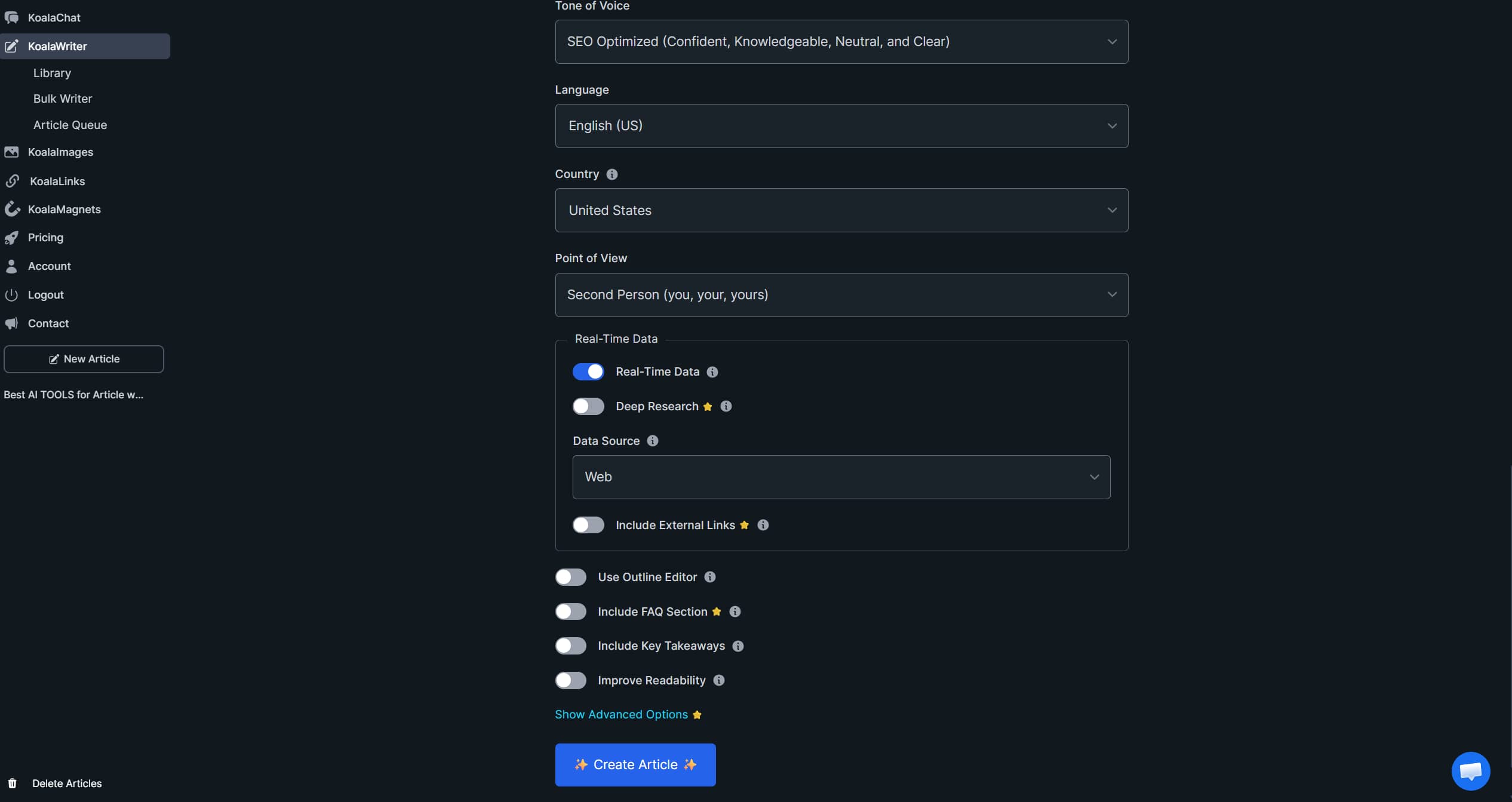
KoalaWriter’s advanced article settings, including Real-Time Data, Deep Research, external links, FAQ, Key Takeaways, and the Create Article button.
Step 3: Choose Your Koala AI Writer Model
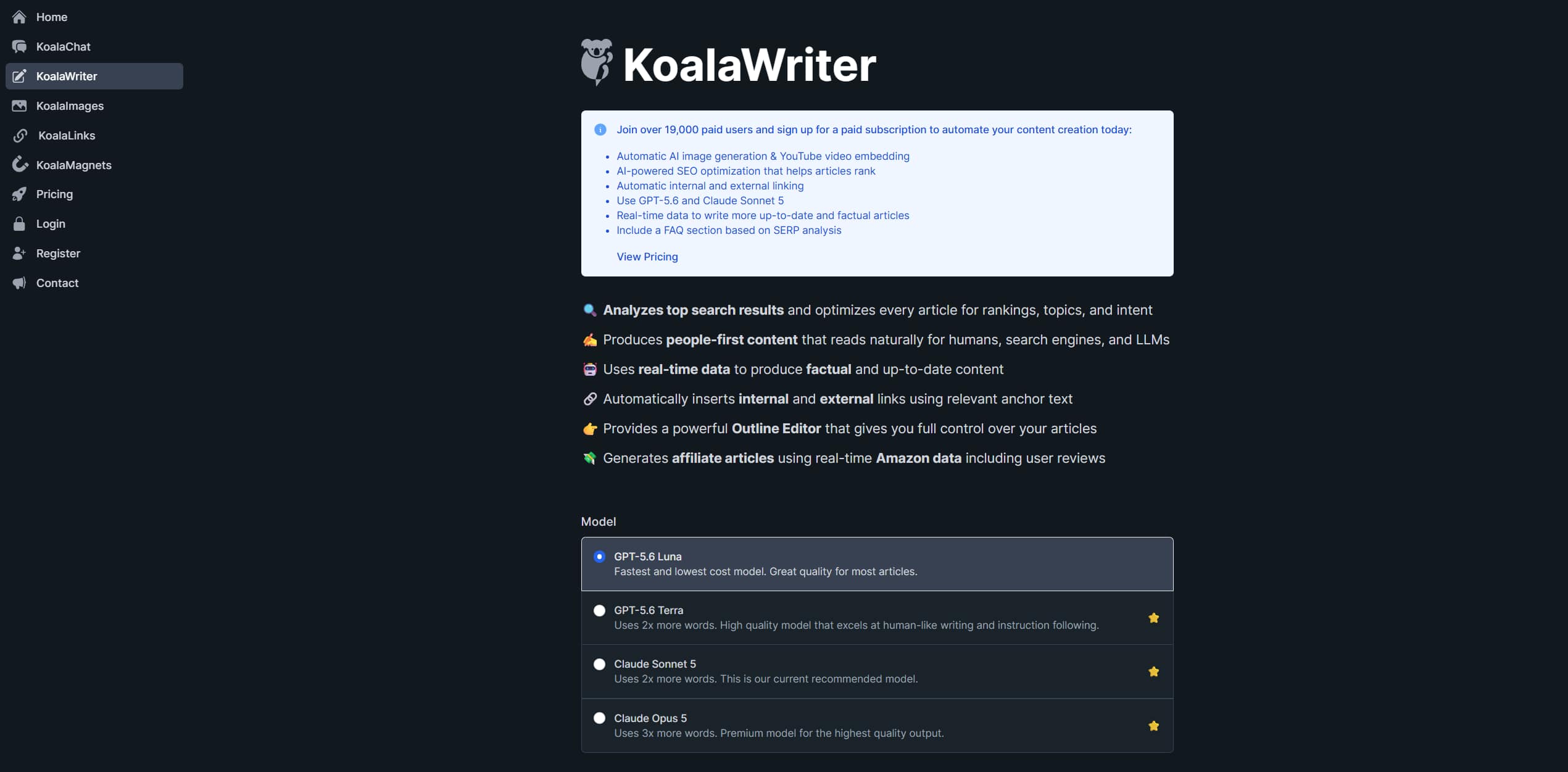
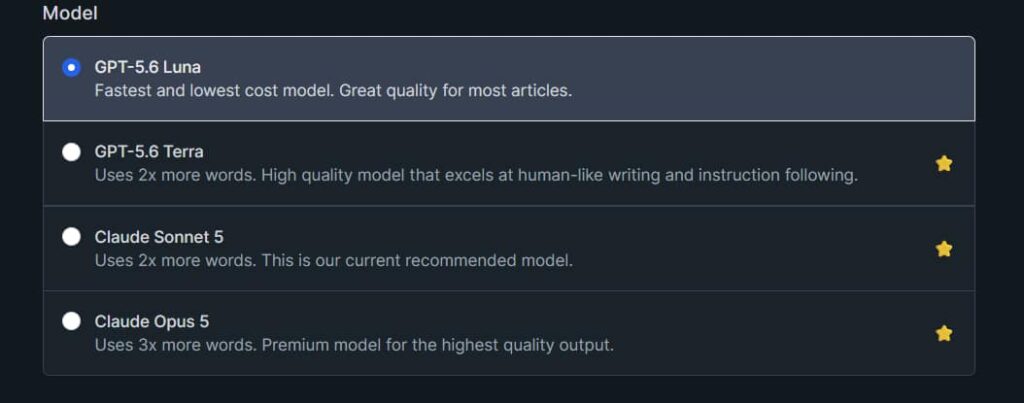
This is the biggest change from older versions of the platform. You now have four options, and the credit cost varies significantly between them.
GPT-5.6 Luna is the fastest and lowest-cost option.
GPT-5.6 Terra uses 2x the word credits and is aimed at more human-sounding writing and better instruction following.
Claude Sonnet 5 also uses 2x credits and is Koala’s current recommended pick.
Claude Opus 5 uses 3x credits and is the premium option.
Koala doesn’t offer OpenAI’s newest model yet. If you’re on ChatGPT Plus and want to try it directly, here’s where to find GPT-6 Astra on ChatGPT Plus — it isn’t in the standard chat window.
KoalaWriter’s current AI model selector showing GPT-5.6 Luna, GPT-5.6 Terra, Claude Sonnet 5, and Claude Opus 5.
That 3x multiplier on Opus is worth a second’s thought. If your plan gives you a fixed pool of word credits, choosing Opus for everything cuts your monthly article count to a third of what it would be on Luna.
Which one should you actually use?
Start on Luna. It handles ordinary informational articles perfectly well, and you will get through far more content while you are still learning what the tool does badly.
Move up to Terra or Sonnet 5 when the writing quality genuinely matters: a page you expect to rank, a piece with your name on it, or an article with detailed instructions Koala needs to follow exactly.
Save Opus for the handful of pages that carry real commercial weight. Paying triple for a post nobody will read is an easy mistake to make in your first month.
Step 4: Choose Your Article Type
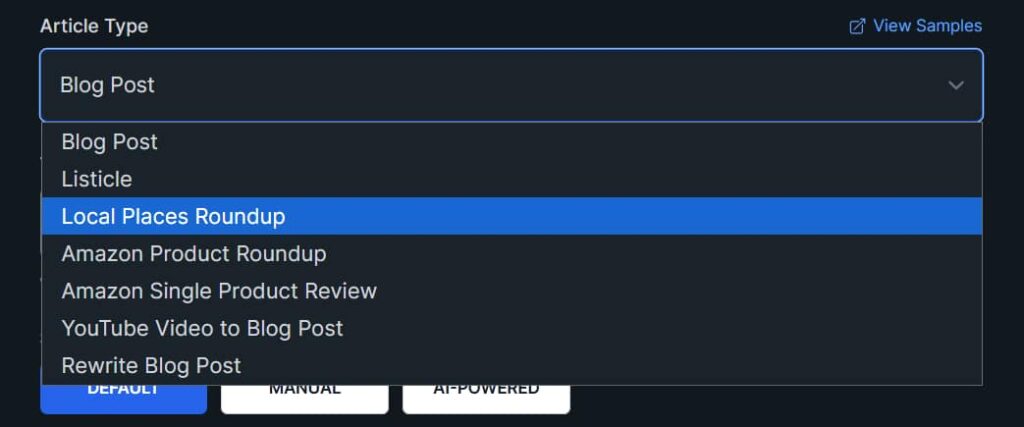
KoalaWriter’s Article Type menu with options for blog posts, listicles, Amazon reviews, YouTube videos, and more.
The dropdown covers blog posts, listicles, YouTube video articles, Amazon product roundups, single product reviews, local places roundups, service pages, and rewritten posts.
For a normal informational article, pick Blog Post.
Step 5: Enter Your Target Keyword
KoalaWriter’s Target Keyword field
This is the topic the article gets built around, so give it one clear subject:
how to clean a 3D printer nozzle
One topic per article. Cramming three unrelated phrases into this field produces an article that covers all three badly.
Step 6: Configure SEO Optimization
KoalaWriter’s three SEO Optimization modes: Default, Manual, and AI-Powered.
Three options: Default, Manual, and AI-Powered.
Default lets Koala handle the optimization with its standard configuration. Manual hands you control over how the article gets structured and targeted. AI-Powered automates more of that decision-making, leaning on Koala’s analysis of the pages currently ranking.
Start on Default. Once you have published a few articles and have a feel for what you want changed, try Manual on one and compare.
Step 7: Turn On Automatic Internal Linking
KoalaWriter’s Automatic Internal Linking settings with the Connect Site option for adding a website domain.
If you already have published articles, this is one of the most useful features.
Connect your domain and let Koala fetch your sitemap. Once it indexes your URLs, it can find relevant pages on your site and link to them automatically, with sensible anchor text, as it generates the article.
Writing about nozzle cleaning and you already have a printer maintenance guide published? It will find it. Without this, you have to search your own site manually every time you publish.
Step 8: Add AI Images and YouTube Videos
KoalaWriter’s AI Images & YouTube Videos settings with None, Auto, Images, and Videos options.
Four settings: None, Auto, Images, Videos.
Auto lets Koala decide where an image or YouTube embed may fit, while Images and Videos let you choose which type of media to include.
Auto is a reasonable default, but review whatever it inserts. The goal is not maximum media. Every image and video should do a job.
Step 9: Choose Your Article Length
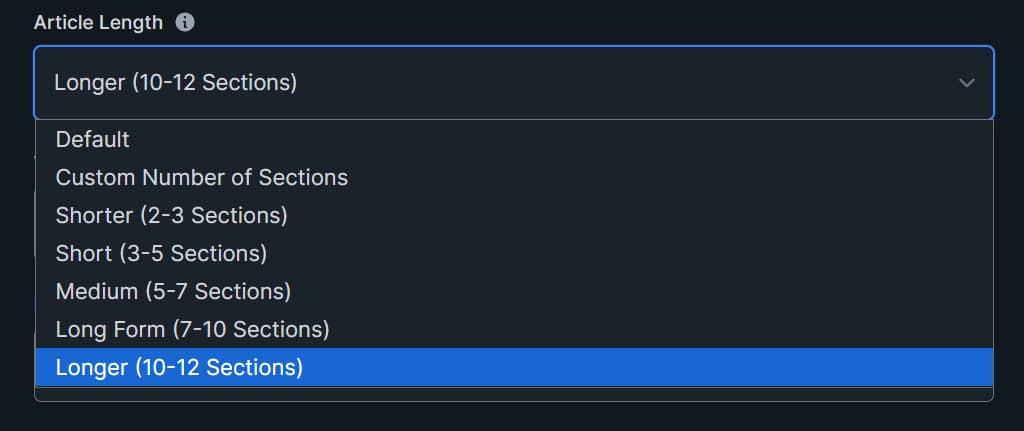
KoalaWriter’s Article Length menu with options ranging from shorter articles to longer 10–12 section articles.
Longer is not better.
A 1,500-word article that fully answers the question beats a 4,000-word one padded to hit a number. Match the length to what the topic actually needs.
Step 10: Choose a Tone of Voice
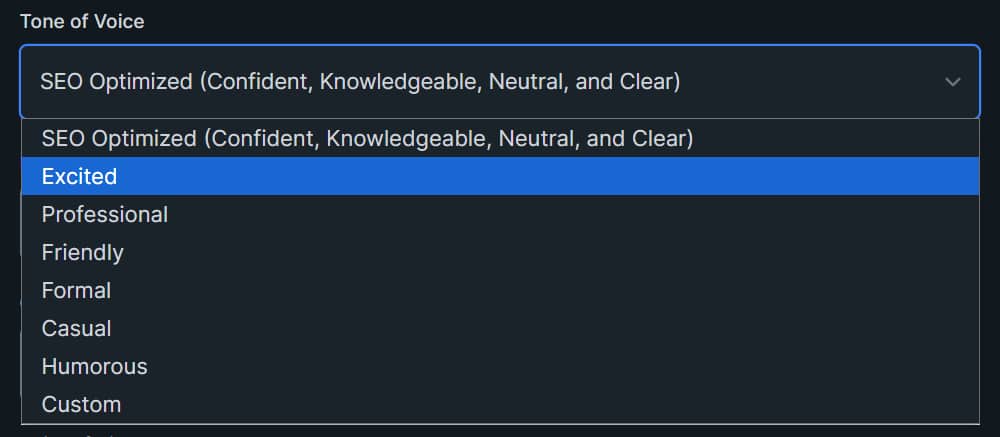
KoalaWriter’s Tone of Voice menu with SEO Optimized, Excited, Professional, Friendly, Formal, Casual, Humorous, and Custom options.
Koala ships several tone profiles and supports custom ones. The default on my account is “SEO Optimized (Confident, Knowledgeable, Neutral, and Clear)”, which suits most informational content.
If you are writing something with a personal angle, a more conversational profile will serve you better.
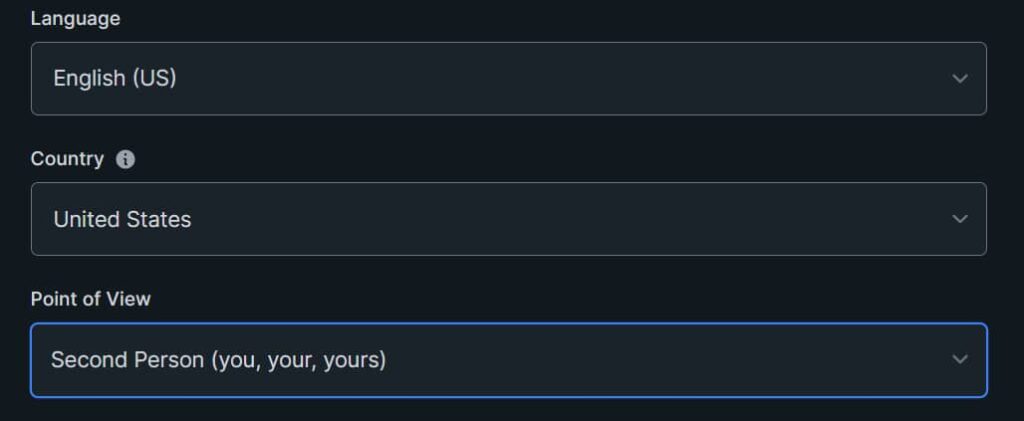
Step 11: Set Language, Country and Point of View
KoalaWriter settings for choosing the article language, target country, and point of view.
Pick your language and target country. The country setting matters more than it looks: it affects which results Koala pulls when researching, so setting it correctly gives you localized data instead of American defaults.
Point of view options are first person singular, first person plural, second person, and third person.
Third person for neutral informational content. First person when you are writing from experience and want it to read that way.
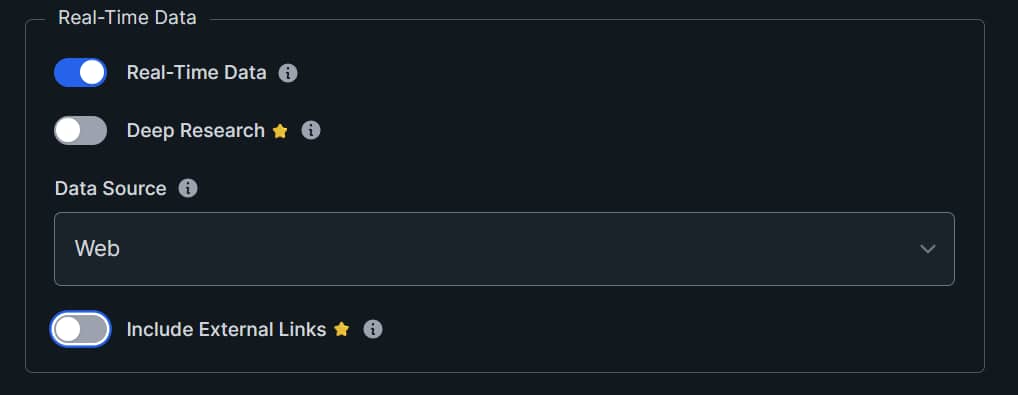
Step 12: Turn On Real-Time Data and Deep Research
KoalaWriter’s advanced research settings, including Real-Time Data, Deep Research, Web data, and External Links.
The advanced panel includes live data, deep research, external links, an FAQ section, key takeaways, readability improvements, auto polish, and custom outlines.
Real-time data pulls current information into the article as it writes. Deep research goes further, pulling more context from authoritative sources for topics that need citations.
Real-time data earns its credits on anything that changes: software, pricing, hardware comparisons, statistics, anything with a version number. For an evergreen how-to, you can leave most of them off.
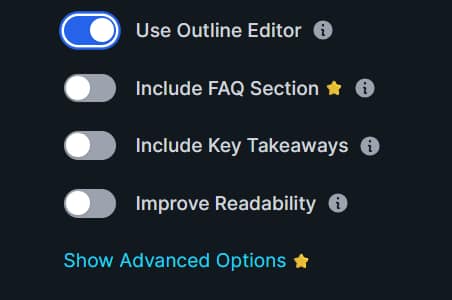
Step 13: Edit the Outline Before KoalaWriter Writes
KoalaWriter’s Outline Editor option with additional settings for FAQs, key takeaways, and readability.
This is the step most people skip, and it separates a usable draft from a generic one.
The Outline Editor shows you the proposed structure before you write anything. You can add and delete H2s and H3s, reorder sections, and cut the ones that do not belong.
Two minutes here saves twenty minutes of editing later, because fixing a bad structure after generation means rewriting whole sections. Fixing it before generation means deleting a line.
If you have a clear idea of how the article should run, impose it here.
Step 14: Generate Your Article
Click Create Article in KoalaWriter to start generating the article.
Click Create Article.
Koala researches the topic, builds against your outline, and writes. Generation time varies by model and how much research you enable.
Part 2: What Koala AI Writer Actually Produces
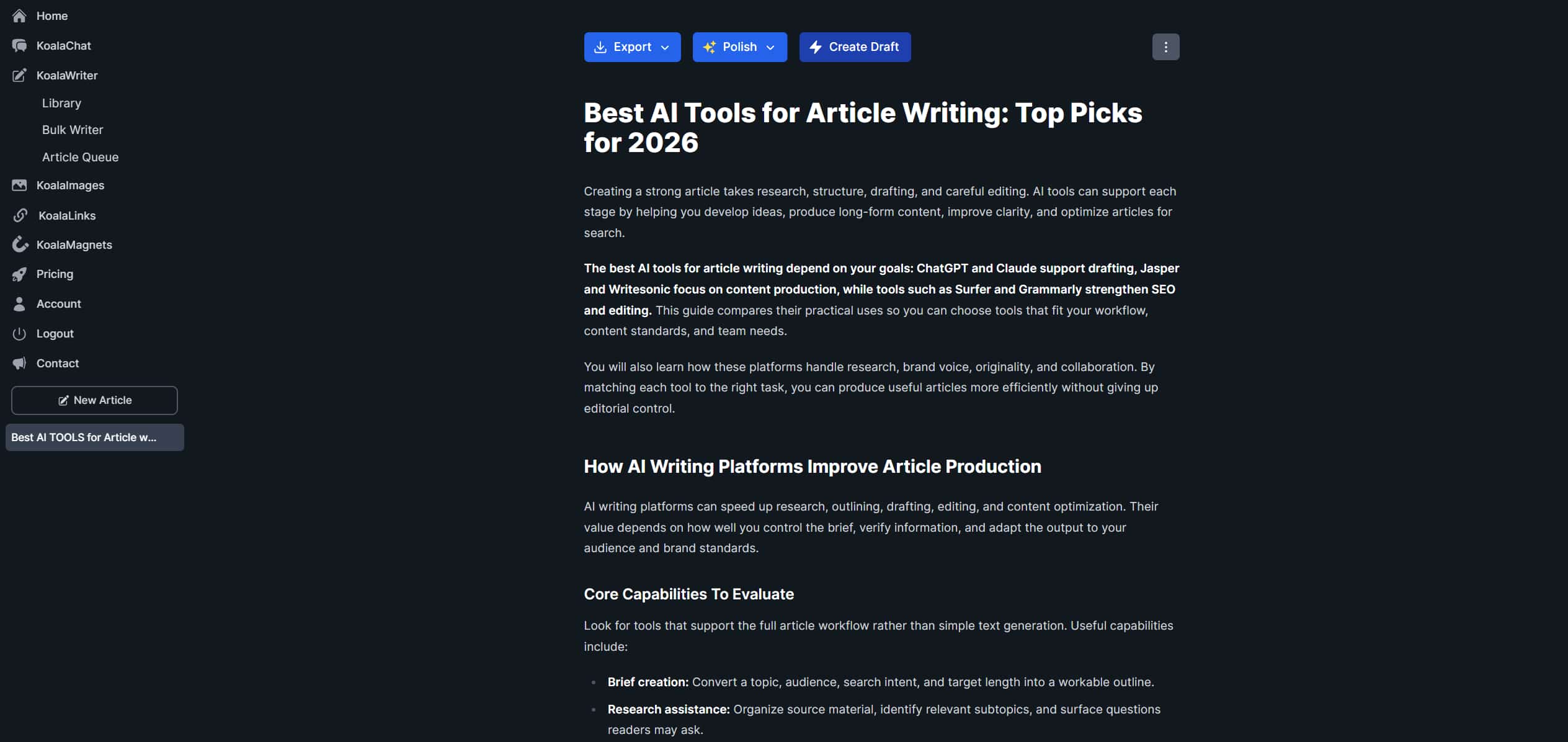
A generated article displayed in the KoalaWriter editor with options to export, polish, or create a draft.
I tested KoalaWriter by running “Best AI Video Tools” through the standard Blog Post workflow using GPT-5.6 Luna with Real-Time Data enabled. It took approximately 3 minutes to generate the article and produced around 1850 words. The opening was solid overall, although the first paragraph felt a little generic, so I rewrote it to sound more natural.
I also removed a couple of repetitive sections and corrected a few details I wanted to verify myself. What surprised me most was the article structure: the H2s were already arranged in a logical order, which meant I spent much less time reorganizing the draft than I expected.
How to Edit AI-Generated Content
Before this goes anywhere near your site, check for:
Factual errors, especially anything with a number attached
Outdated information
Sections that repeat each other in different words
Claims that sound authoritative but are not supported
Links pointing somewhere unhelpful
Images or embedded videos that do not match the surrounding text
Then add the thing no generator can produce for you: what you actually know. Your screenshots, your results, the mistake you made the first time, the setting you wish someone had told you about.
That is the difference between a page worth publishing and one more piece of the same article everyone else already has.
Publishing Straight to WordPress
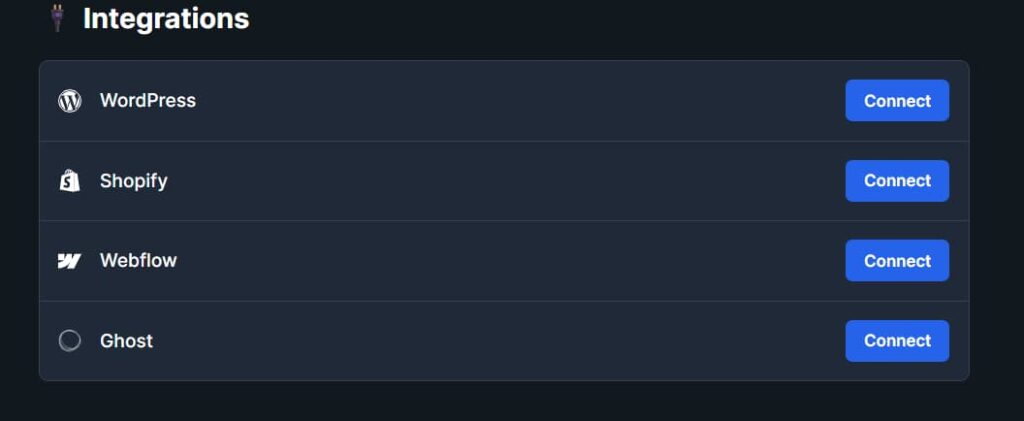
KoalaWriter integrations for publishing articles to WordPress, Shopify, Webflow, and Ghost.
Once you are happy with it, Koala can publish straight to WordPress, and it also supports Shopify, Webflow, and Ghost.
Send it as a draft rather than publishing live. You can still set your featured image, check the formatting, and add your own screenshots before it goes public.
This small feature saves a lot of time if you publish weekly. Copying formatted content out of an editor and into WordPress is where images break, and headings flatten.
Part 3: Turn a YouTube Video Into a Blog Post With KoalaWriter
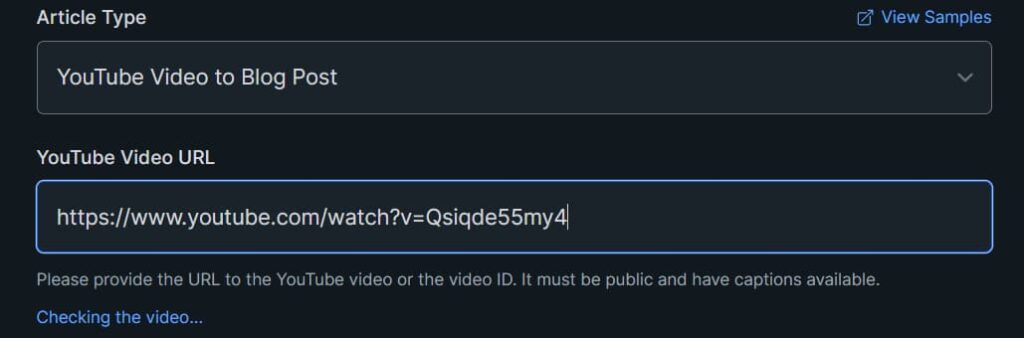
KoalaWriter’s YouTube Video to Blog Post setup with the video URL pasted into the YouTube Video URL field.
This is my favorite thing the tool does, and it is worth knowing about even if you use nothing else here.
If you already make videos, you have written the content once. The transcript exists. Turning it into a post is repurposing, not starting over.
What you need first: the video must be public, and it must have captions. No captions, no article.
Then:
Copy the video URL, select the YouTube Video article type in Koala, and paste it in.
Turn on the caption rewriting option. You want an article, not a transcript with paragraph breaks. Spoken language reads badly on a page, and skipping this step is the fastest way to publish something that sounds like a person talking rather than something written to be read.
Configure the rest as you would for any article: model, SEO mode, internal linking, media, length, tone, language, point of view.
Then generate, and edit as normal.
One warning: Check the article against your actual video before publishing. Caption quality varies, and if the transcript garbles a product name or a number, that error will now sit on your site with your name on it.
Done properly, one video becomes a video, a blog post, internal links to your other pages, and something for your email list.
The step before all of this is having a video worth repurposing. My free YouTube Title & Hook Generator helps with the title and opening hook, which is what decides whether the video gets watched in the first place.
Does Google Penalize AI Content From Koala AI Writer?
Wrong question.
Google does not penalize content for being AI-assisted. It penalizes content that is unhelpful, inaccurate, or built to game search rather than to be read. Plenty of hand-written content fails that test too.
What matters is what you do after generation. A draft you researched, restructured, fact-checked, and added your own experience to is a different object from a draft you generated and published in the same minute.
The realistic process looks like: pick a topic you know something about, generate a draft, check every factual claim, add what only you can add, then publish.
The tool speeds up the middle of that process. The quality of what ends up on your domain is still entirely your responsibility.
Koala AI Writer Pricing in 2026
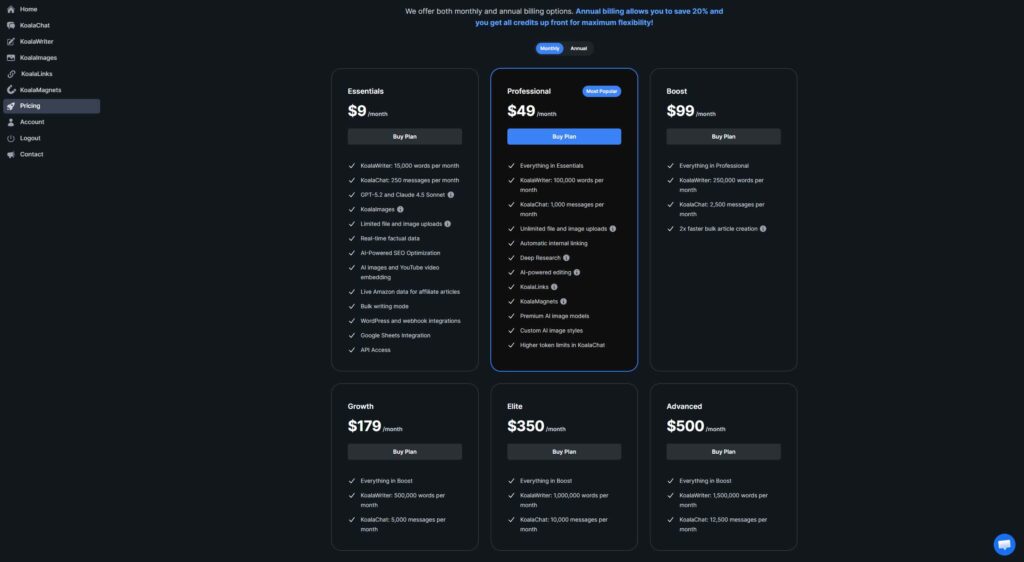
Koala AI Writer’s current monthly pricing plans, from Essentials at $9 per month to Advanced at $500 per month.
Koala AI Writer pricing currently runs:
Essentials — $9/month
Professional — $49/month
Boost — $99/month
Growth — $179/month
Elite — $350/month
Advanced — $500/month
Higher-volume Scale plans are available above that.
Two things worth understanding before you pick a plan:
First, plans are metered in word credits, not articles. Combined with the model multipliers from Step 3, your real article count depends heavily on which model you default to.If you are working out what your monthly AI spend actually looks like across several tools, my AI Tool Cost Calculator does that maths for you.
Second, start low. The $9 tier is enough to find out whether the output suits your niche and your standards. Upgrading later takes one click. Committing to a large plan before you know whether you like the writing is how people end up with unused credits and a subscription they forget to cancel.
Is Koala AI Writer Worth It?
For content creators publishing regularly, the value is less about the writing itself and more about how many separate steps happen in one place. Research, outline, draft, internal links, images, video embeds, FAQ, publish. Doing those across five tools costs more time than the writing does.
It is not magic. Your topic, outline, model choice, and editing still determine whether the output is any good.
Some honest caveats worth knowing before you subscribe. Public reviews raise recurring complaints about customer support response times and about subscription cancellations, and some users report credits depleting faster than expected, which tracks with the model multipliers if you default to a premium model. Take review sites with appropriate skepticism, since some sell competing tools, but the cancellation and support complaints come up often enough to plan around. Set a calendar reminder before your renewal date if you are only testing.
Koala also isn’t the right fit for everyone, and if you are still weighing it against other options, my AI Tool Finder asks a few questions and points you at the tool that matches your actual workflow.
Koala AI Writer is worth it if you’re publishing content regularly and want to speed up the research, outlining, drafting, and optimization process. I wouldn’t recommend it to someone who only writes an occasional article or just wants a general-purpose AI chatbot. I mainly use Koala to turn content ideas and existing material into structured blog posts, especially when I can repurpose a YouTube video into an article and connect it to the rest of my site. I still write and edit the parts that need a human touch myself: introductions, personal experience, fact-checking, and the final polish.
Frequently Asked Questions About Koala AI Writer
Is there a free version of Koala?
Yes. There is a free tier with limited output, which is enough to evaluate the writing quality before paying.
Which Koala model is best?
Luna for volume and cost, Terra or Claude Sonnet 5 for quality, Claude Opus 5 when the page really matters. Sonnet 5 is Koala’s own recommendation.
Can Koala publish directly to my site?
Yes, to WordPress, Shopify, Webflow, and Ghost. It can send it as a draft rather than publishing live.
Does the YouTube feature work on any video?
Only on public videos that have captions available.
Will content from Koala rank on Google?
Not automatically. Content ranks based on whether it is useful, accurate, and better than what already ranks. The tool gets you a draft faster; it does not get you a ranking.
How many articles can I generate per month?
It depends on word credits rather than article count, and the model multipliers change the maths. The same plan produces roughly three times as many articles on Luna as it does on Opus.
Can I control the structure before it writes?
Yes, through the Outline Editor. Edit the H2s and H3s before generating rather than fixing structure afterward.
Final Thoughts
The version of this tool that existed two years ago was a text generator. The current one is closer to a production line: models, live research, structural control, linking, media and publishing in one place.
The workflow I get the most out of is the video one. Record something, turn the transcript into a draft, connect it to the rest of your site, add your own screenshots, then publish something that didn’t exist that morning and didn’t take a full day.
The point is not to publish more. It is to spend your time on the parts of an article that only you can write.
If you want to use Koala AI Writer on your own site, you can try Koala here.
Affiliate Disclosure
This article contains affiliate links. If you purchase Koala through my link, I may earn a commission at no additional cost to you.
I only recommend tools I genuinely find useful for creators, bloggers, and site owners.